 Sorted Fundraising
Run a ticketed event with seats
Seat people at tables or in rows, and scan their tickets at the door.
Start a Ticketed event, then open What you’re selling. Your tickets are there, ready to change: Adult, Child, and a Family ticket that lets in 4.
Under What do the tickets buy?, leave Entry if people sit where they like. Choose A seat if they choose where they sit, then tap Save and continue.Under What do the tickets buy?, leave Entry if people sit where they like. Choose A seat if they choose where they sit, then click Save and continue.
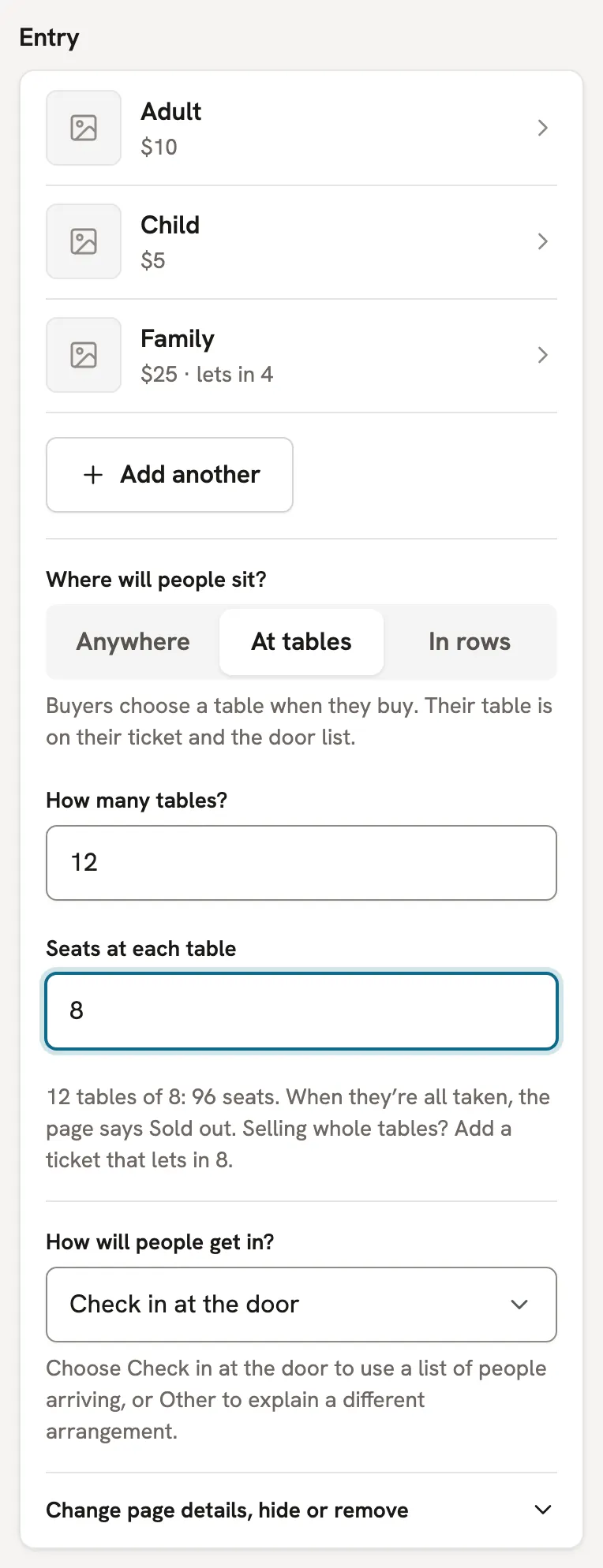
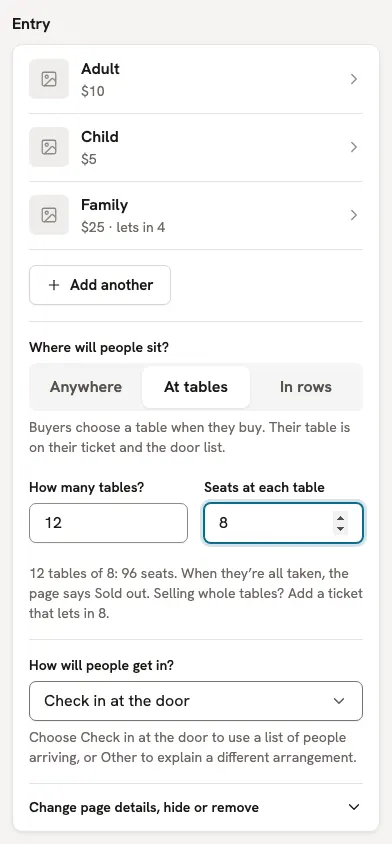
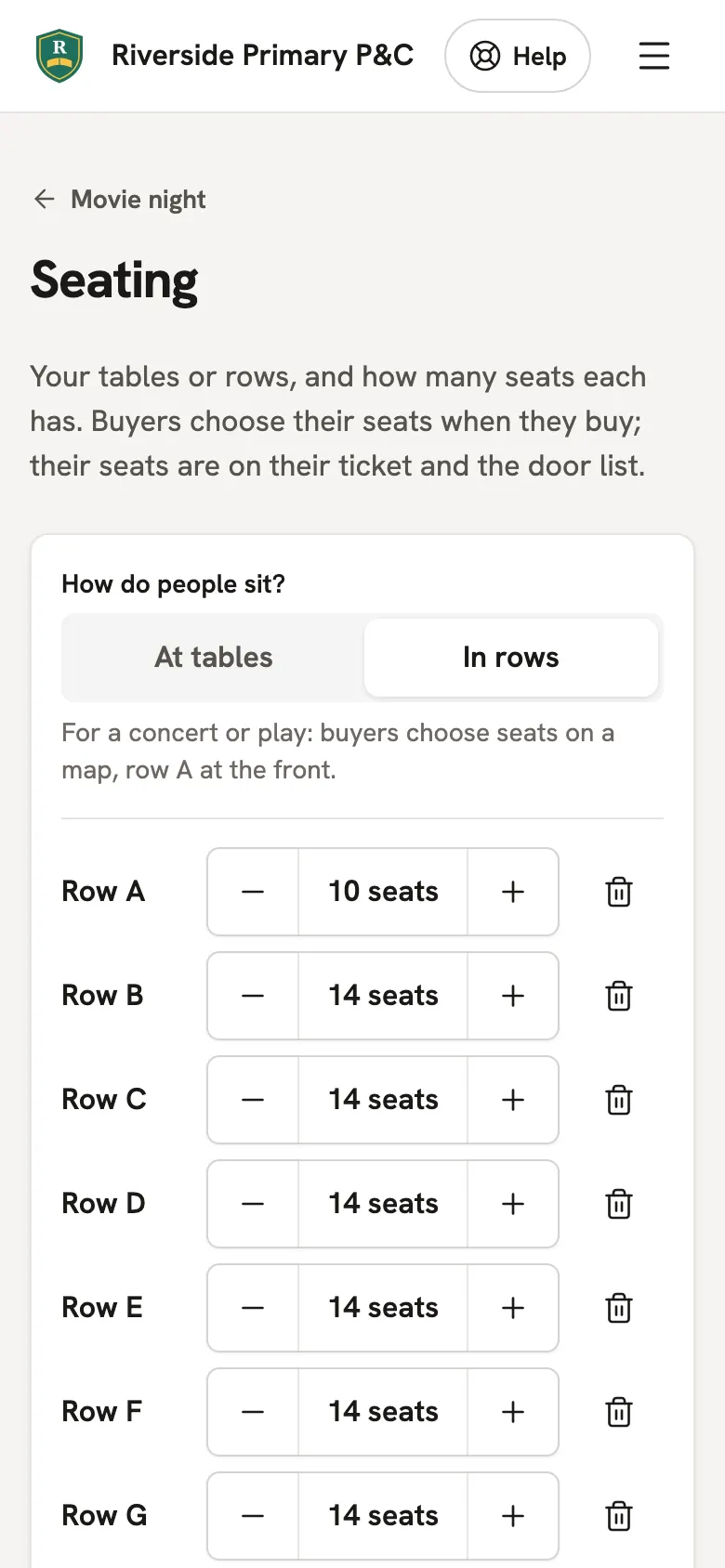
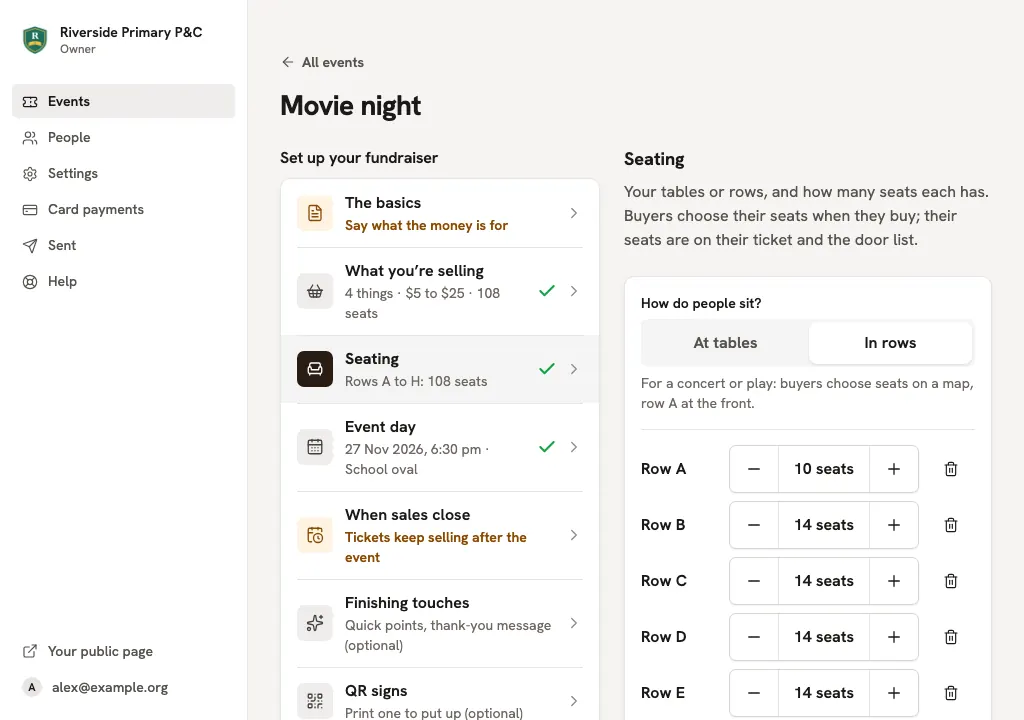
In Seating, choose At tables for a trivia night or dinner, or In rows for a concert or play. Say how many and how many seats each has, and tap the button to set them up. Then change any one: a smaller table, or a longer row at the back. Tap its name to give it your own Table name or Row name, matching the signs in your venue. The seats are your ticket limit: when they're all taken, the page says Sold out.In Seating, choose At tables for a trivia night or dinner, or In rows for a concert or play. Say how many and how many seats each has, and click the button to set them up. Then change any one: a smaller table, or a longer row at the back. Click its name to give it your own Table name or Row name, matching the signs in your venue. The seats are your ticket limit: when they're all taken, the page says Sold out.
For named groups such as Main hall and Balcony, tap Add an area, then fill in Area name. Add tables or rows beneath it, or tap an existing table or row name and change its Area. Every area uses the same ticket prices and the same kind of seating.For named groups such as Main hall and Balcony, click Add an area, then fill in Area name. Add tables or rows beneath it, or click an existing table or row name and change its Area. Every area uses the same ticket prices and the same kind of seating.
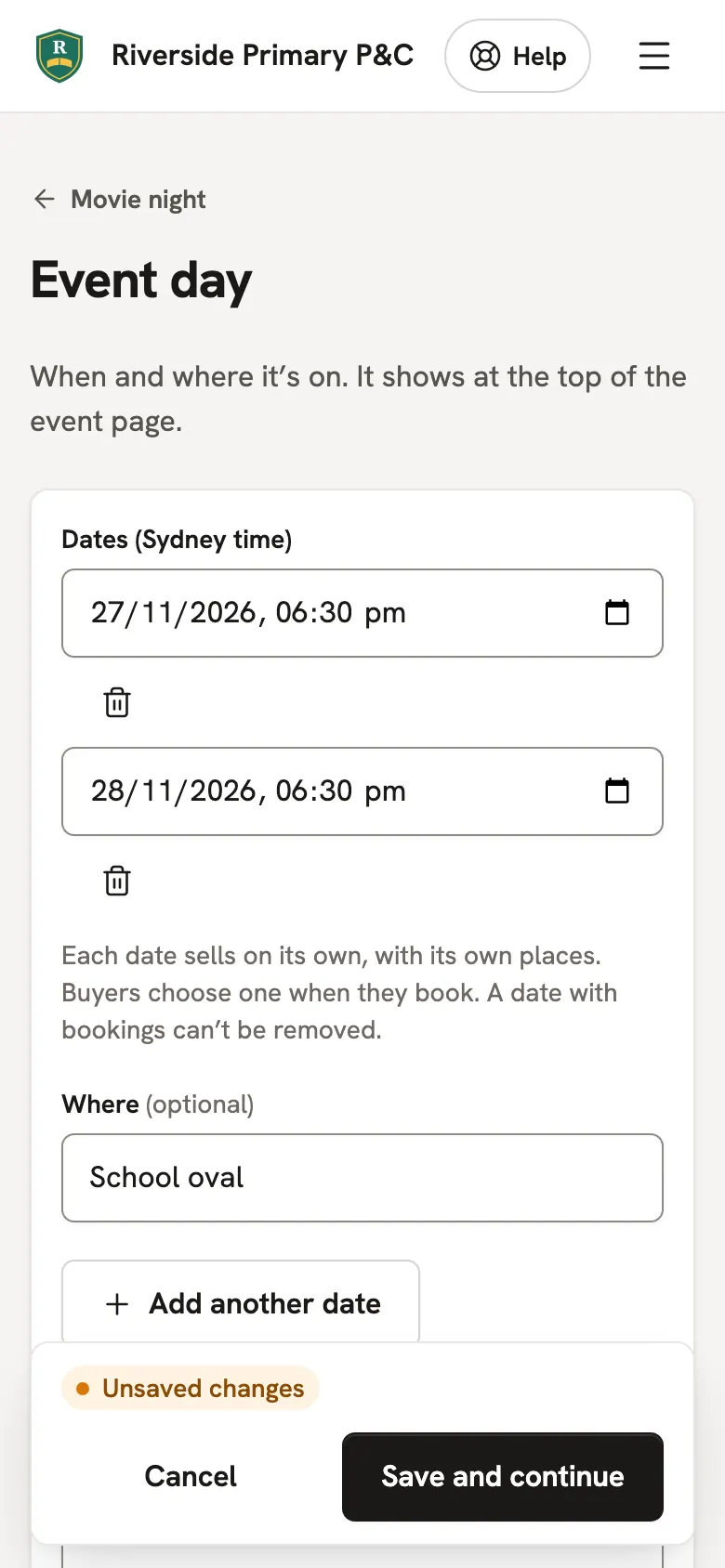
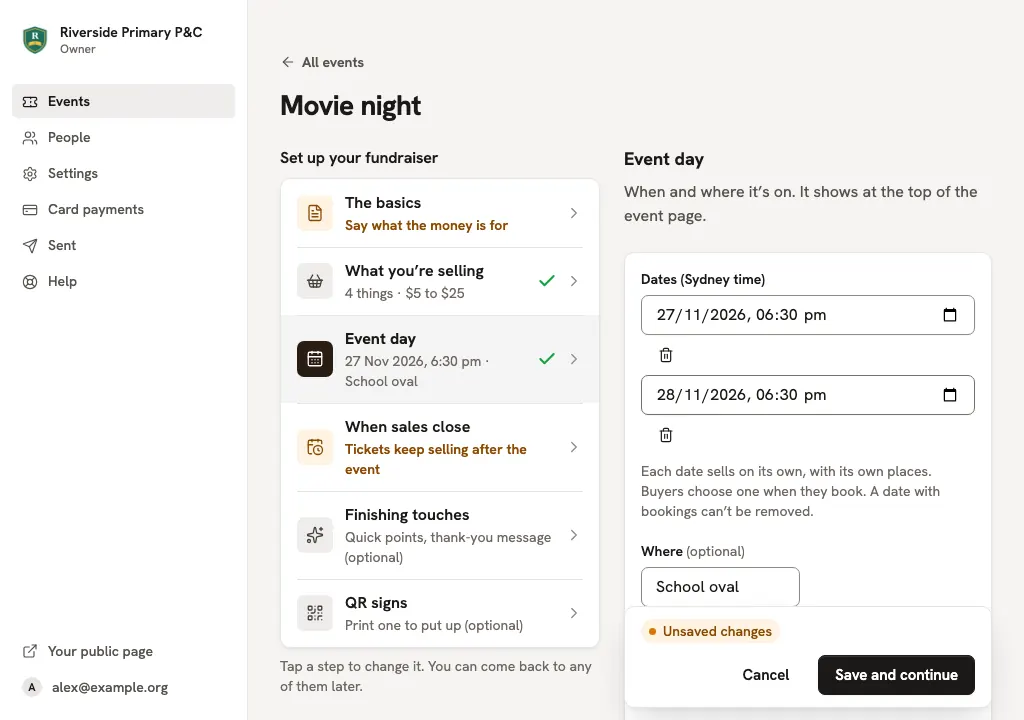
On more than one night, like a school play? Open Event day, choose the Date, then set From and Until. Tap Add another date for a separate day. With One day, each date sells on its own and buyers choose one when they book.On more than one night, like a school play? Open Event day, choose the Date, then set From and Until. Click Add another date for a separate day. With One day, each date sells on its own and buyers choose one when they book.
Runs over consecutive days? Tap Or add a date range, choose First day and Last day, and set the hours once. Tap Add these dates. Each day is added for you; you can change individual days afterwards. Dates already added stay as they are.Runs over consecutive days? Click Or add a date range, choose First day and Last day, and set the hours once. Click Add these dates. Each day is added for you; you can change individual days afterwards. Dates already added stay as they are.
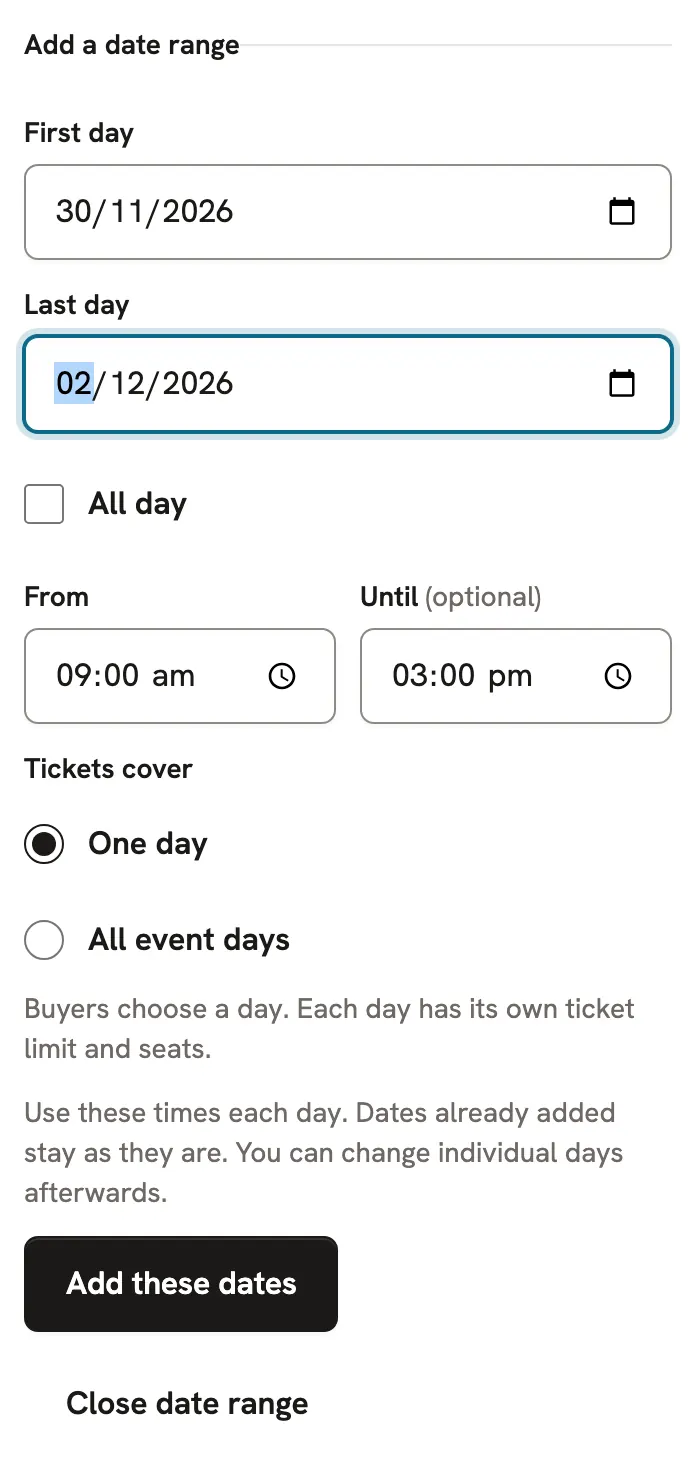
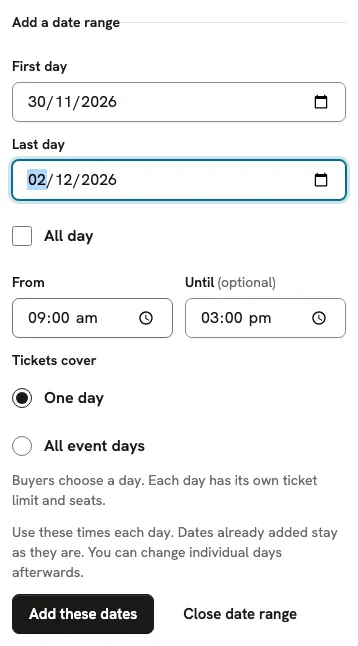
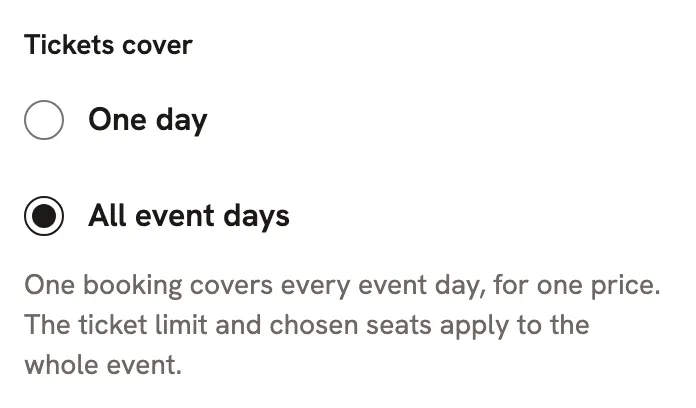
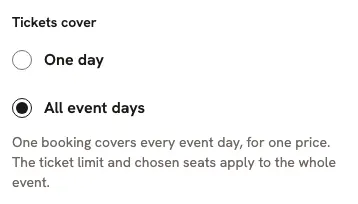
Should one booking cover the whole event? Under Tickets cover, choose All event days. Buyers pay once for every date, with one shared ticket limit and the same seats throughout. One day lets them book a single day instead. This choice stays fixed once anyone books.
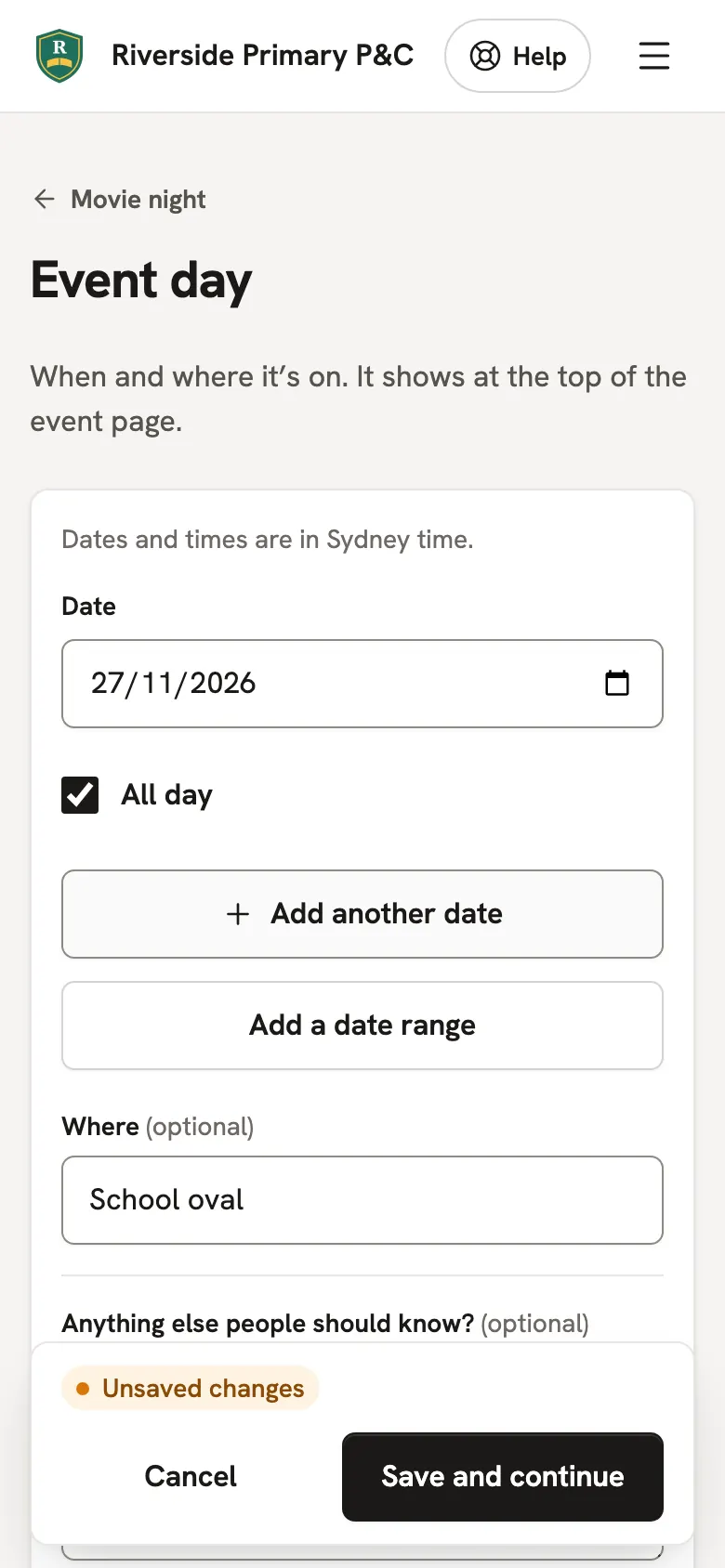
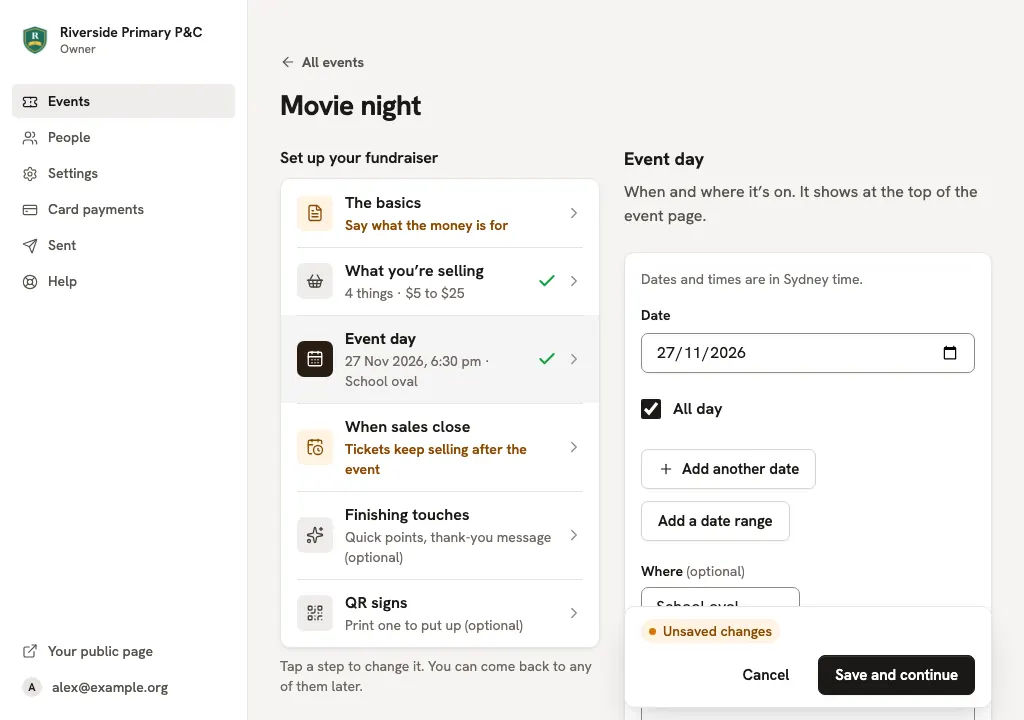
No set hours? Tick All day for that date, or when adding a range. Buyers see All day, and can book until the end of that day.
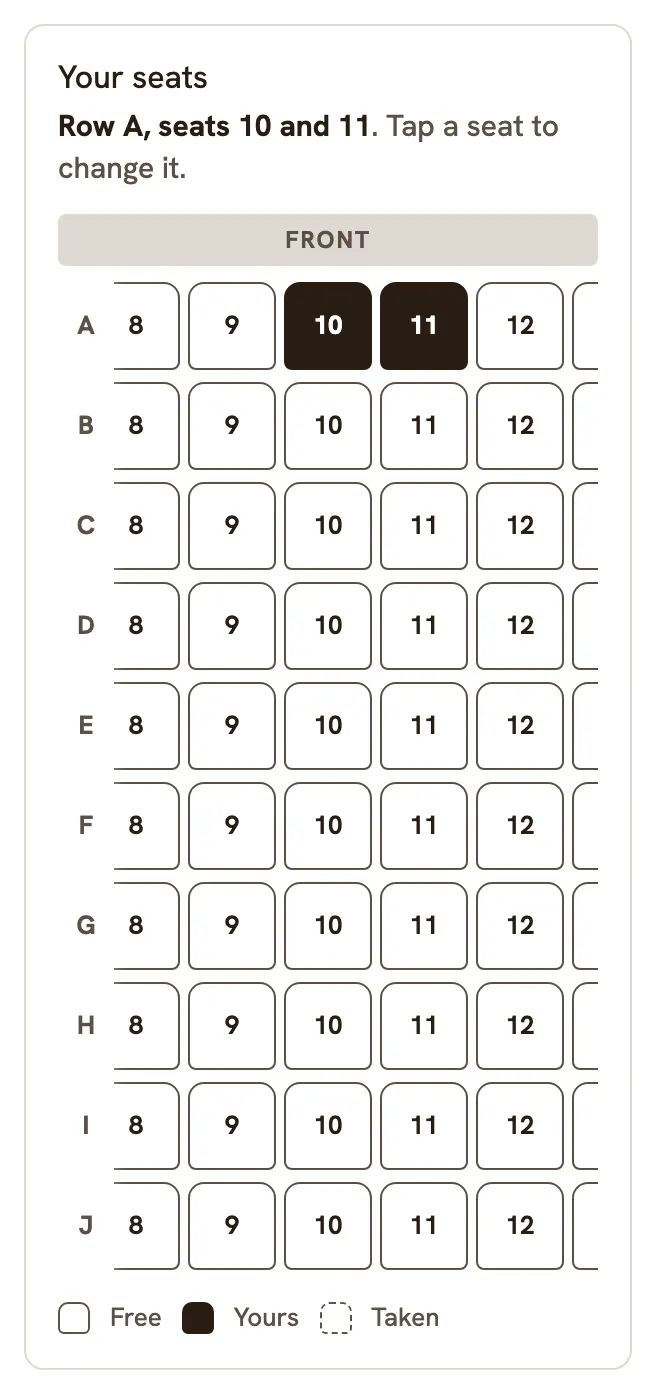
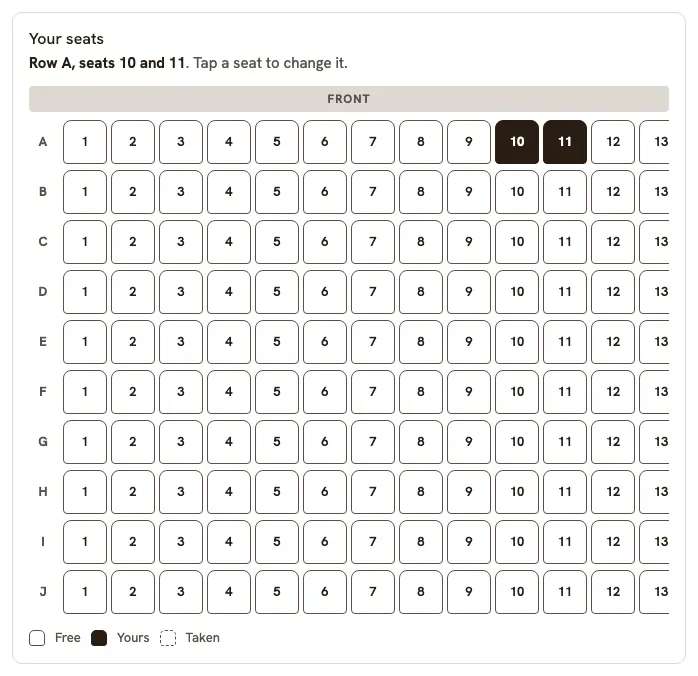
Buyers choose their tickets, and the best seats together are already picked for them. They can tap another table or seat to change, then pay. Chosen seats stay dark, including after a tap. Two people can never have the same seat.Buyers choose their tickets, and the best seats together are already picked for them. They can click another table or seat to change, then pay. Chosen seats stay dark, including after a click. Two people can never have the same seat.
Each buyer gets a QR code, on screen and in their confirmation email, with their table or seats.
Before the night, open your fundraiser and tap Door list. Under Link for door staff, tap Create door link, then Copy link and send it to whoever is on the door. They don't need to sign up.Before the night, open your fundraiser and click Door list. Under Link for door staff, click Create door link, then Copy link and send it to whoever is on the door. They don't need to sign up.
The link opens on Scan tickets: they tap it and point the phone at each QR code. The person is checked in, and their table or seats show in big type. Already checked in means that ticket was used earlier. No phone? Find their name in the list and tap Check in.The link opens on Scan tickets: they click it and point the phone at each QR code. The person is checked in, and their table or seats show in big type. Already checked in means that ticket was used earlier. No phone? Find their name in the list and click Check in.
Good to know
- Selling whole tables? Add a ticket that lets in as many as a table seats, and buyers get a table to themselves.
- Once someone has booked or is paying, existing names and areas stay fixed. Tables and rows can only get bigger, or be added, so nobody's seat moves. If seating changes while a buyer is choosing tickets, they are asked to reload before paying.
- If the phone asks to use the camera, tap Allow. If camera access is blocked, allow it for this site in your browser's settings, then tap Try camera again. You can always close the scanner with Done and find names in the door list.If the phone asks to use the camera, click Allow. If camera access is blocked, allow it for this site in your browser's settings, then click Try camera again. You can always close the scanner with Done and find names in the door list.
- Scanning works with no signal: the list is already on the phone, and check-ins send when it's back.
- A full refund gives the seats back for someone else.
Still stuck? Open Help in your console and ask. You get an answer straight away, and a real person whenever you need one.