 Sorted Fundraising
Run a fun day with stalls
A QR sign on every stall. People scan and pay on their own phones, so you don't need a card machine.
On your console's Events tab, tap New event. Choose Stall or bake sale, then tap Create event.On your console's Events tab, click New event. Choose Stall or bake sale, then click Create event.
Open What you’re selling. Your first stall is there: type its Stall name, like "Cake stall", and what it sells, with prices. Tap Add a stall for each other table, then Save.Open What you’re selling. Your first stall is there: type its Stall name, like "Cake stall", and what it sells, with prices. Click Add a stall for each other table, then Save.
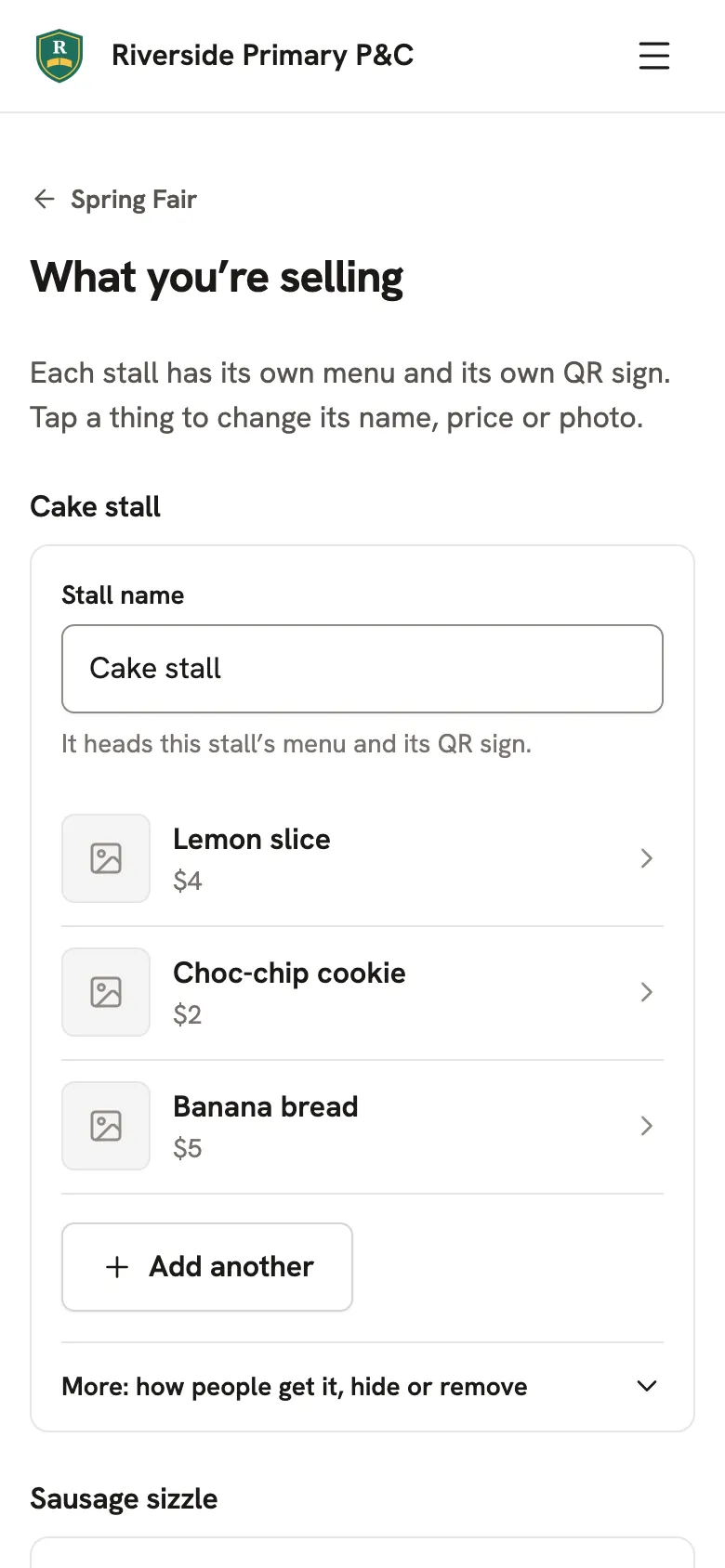
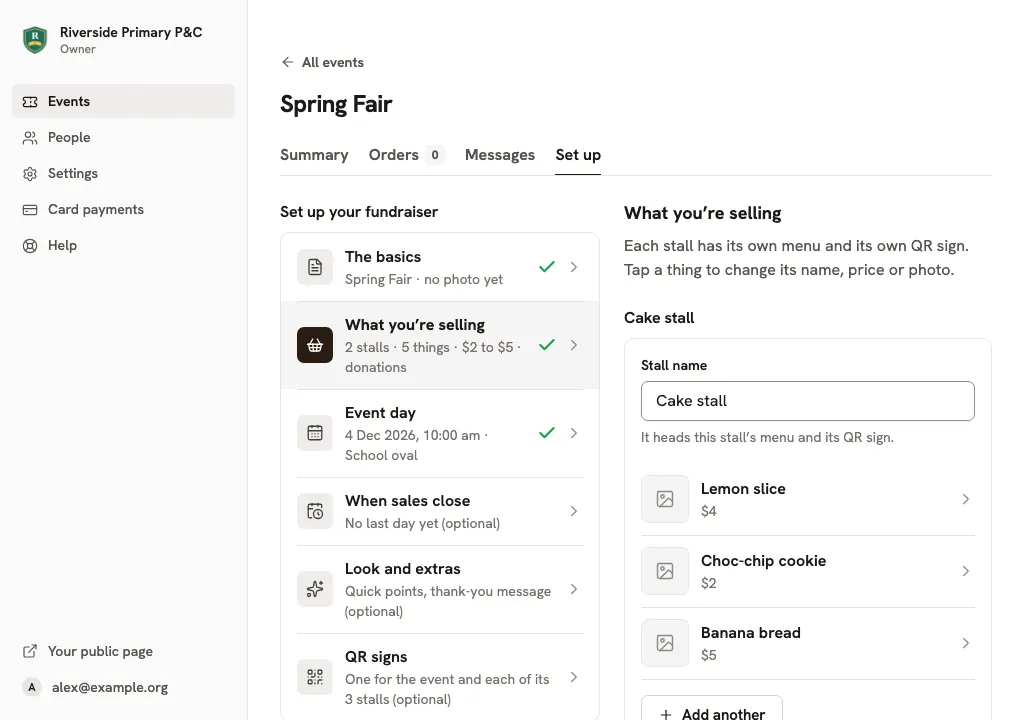
Having a raffle or gold coin entry too? Add Raffle tickets or Donations under Selling something else too? Each gets its own sign.
Fill in Event day, then preview and publish it.
Open QR signs and tap Print all. You get a sign for every stall, one per page.Open QR signs and click Print all. You get a sign for every stall, one per page.
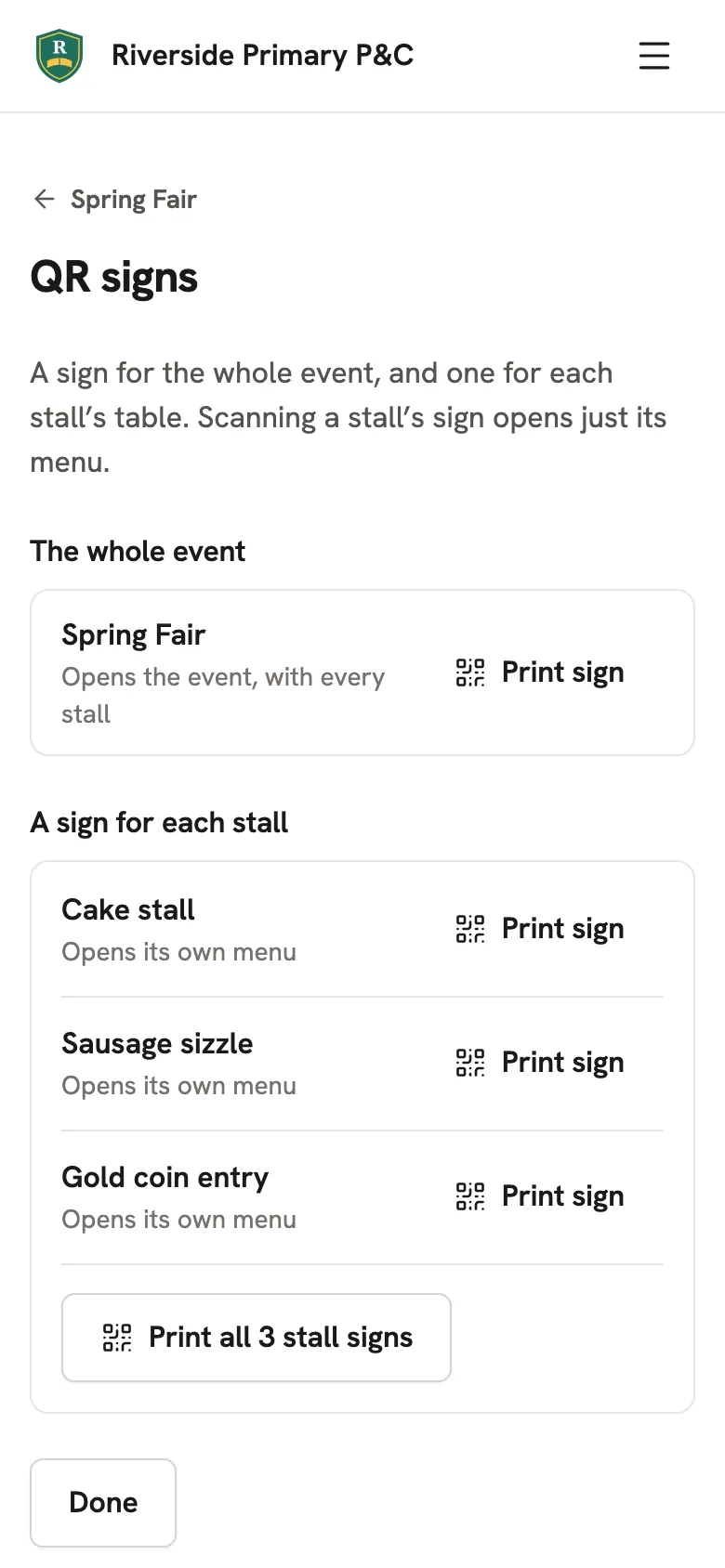
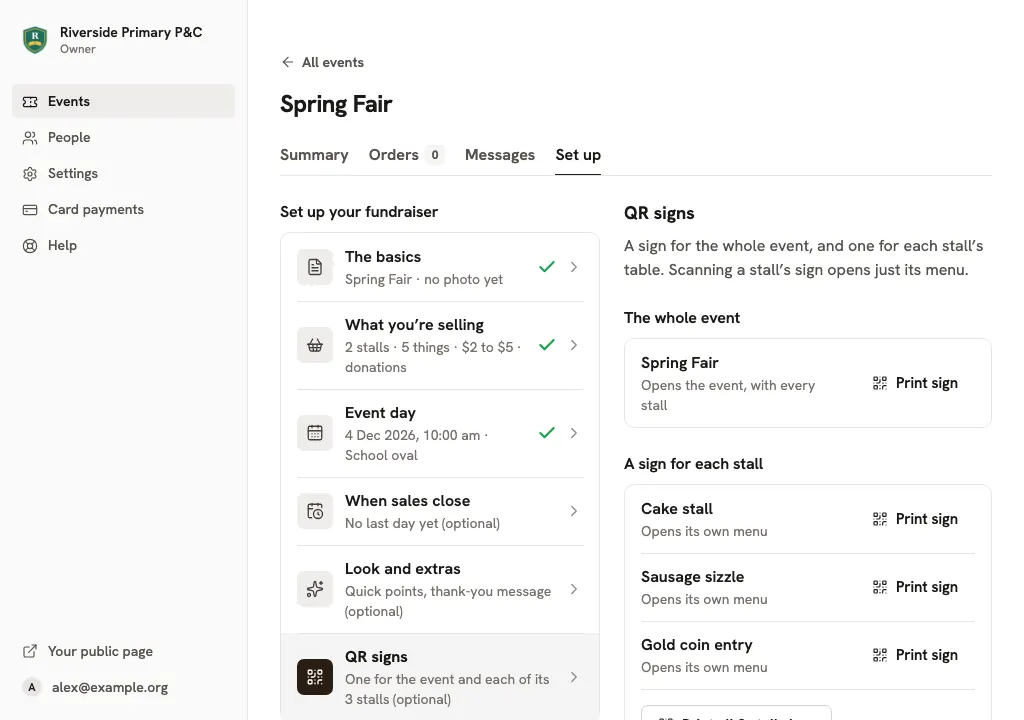
On the day, put each sign on its table. Scanning a stall's sign opens just its menu. People pay on their phone, then show the stall Payment confirmed and take what they bought.
Good to know
- Your event's page shows every stall, so you can share its link before the day too.
- See how many of each thing every stall sold under What's sold.
- Sold out of something? Tap it in What you’re selling and mark it Sold out.Sold out of something? Click it in What you’re selling and mark it Sold out.
Still stuck? Open Help in your console and ask. You get an answer straight away, and a real person whenever you need one.